Student Resources
| Site: | MyPLCGuy Academy |
| Course: | MyPLCGuy Academy |
| Book: | Student Resources |
| Printed by: | |
| Date: | Saturday, 14 November 2026, 12:23 PM |
Description
Help and resources for all our courses.
1. Finding Your Way Around
Here's how to get through your course, from logging in to your certificate.
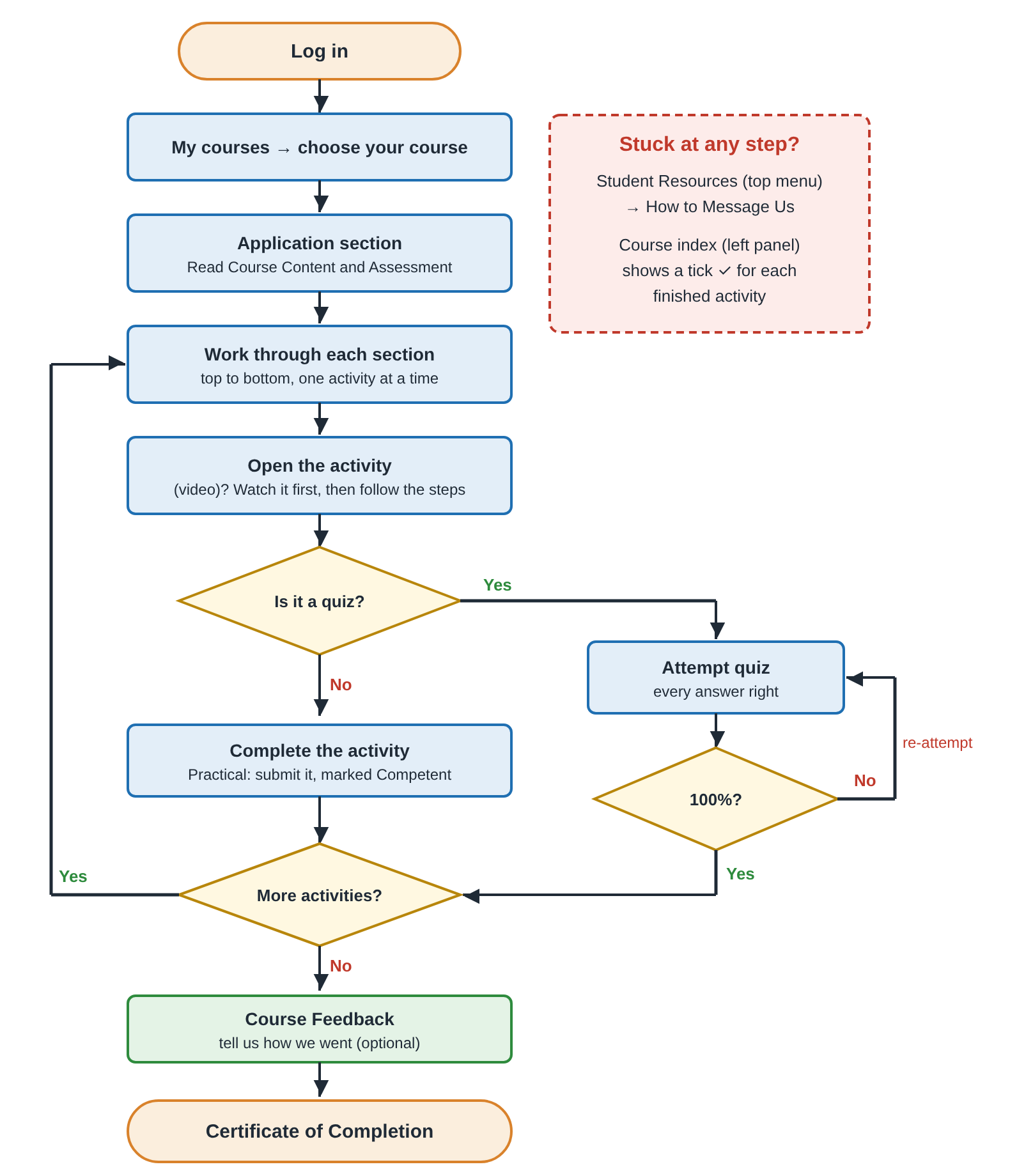
- Log in, click My courses in the top menu, then choose your course.
- Start in the Application section at the top. Read Course Content and Assessment. Assessment shows what you need for your certificate.
- Work through each section from top to bottom, one activity at a time. The list on the left shows every activity in your course. Click one to go straight to it.
- If an activity has (video) in its name, watch the video first, then follow the steps.
- Quizzes: click Attempt quiz. You need every answer right. If you miss one, click Re-attempt quiz.
- Practical tasks: upload your program. Your instructor marks it Competent or Not yet competent. If it's Not yet competent, read your instructor's comments, fix your program and upload it again.
- At the end, fill in Course Feedback. Your Certificate of Completion appears once your instructor has marked your program Competent.
Tips
- The list on the left shows a tick for each activity you've finished.
- Can't see the list on the left? Click this button at the top left, beside the course name. It says Open course index when you point at it.

- Stuck? Go to Student Resources → How to Message Us. We're happy to help.
2. How to Message Us
Stuck or have a question? Message us from inside Moodle. It's the same in every course.
Send a message
- Click the messaging icon at the top right of any page (beside the bell). The messaging drawer opens.
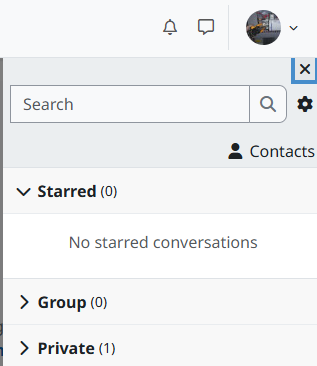
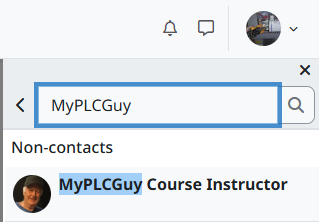
- If a conversation is open, click ← to go back to the list.
- In Search, type MyPLCGuy and press Enter. Under Non-contacts, click MyPLCGuy Course Instructor.
- Type your message in Write a message… and click the send arrow.
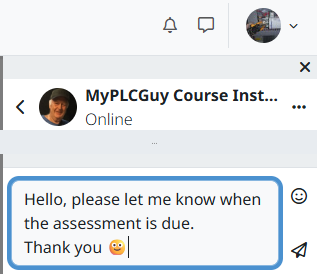
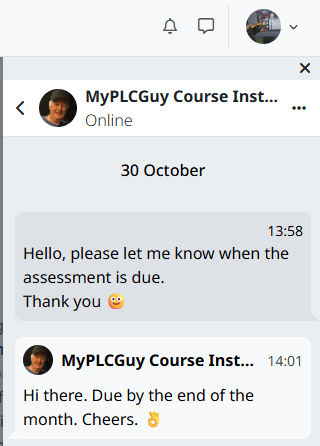
Your message shows in the conversation.
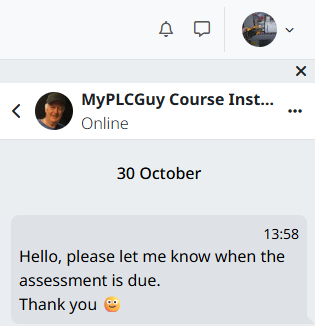
Get our reply
- You'll get an email when we reply.
- A red number on the messaging icon shows a new message. Messages don't appear live: if you don't see the number, refresh the page.
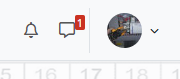
- Open the messaging drawer. The reply is under Private, next to MyPLCGuy Course Instructor. Click it to read it.
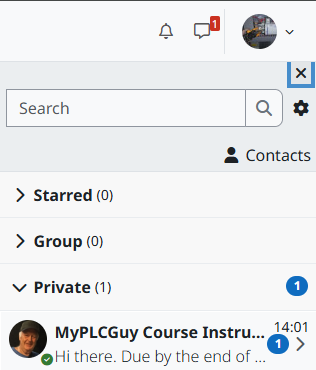
What's in the messaging drawer
- Starred: your favourite conversations. Your Personal space is here: notes to yourself that only you can see.
- Private: your conversations with us.
- Group: not used in our courses.
- Contacts: not needed to message us. Clicking our name at the top of a conversation shows Block user and Add to contacts. You can ignore both.
- Cog icon: your messaging settings.
- Bell icon: course notifications, not messages.
3. Industry Links
Useful references for PLC programming with Micro800 controllers and CCW.
- Micro800 Controllers Quick Reference (Rockwell Automation 2080-QR001, PDF) – step-by-step guide to programming a Micro800 controller in CCW.
- Micro800 Ladder Diagram Elements (Rockwell Automation) – rungs, branches and instruction blocks. This page is from FactoryTalk Design Workbench Help; the elements are the same in CCW.